
How Can I set Up Payday Emails?
In this article:
- Overview of Rippling payday emails
- Admin settings for the Payroll app
- Employee settings for the Payroll app
- Payday email example
-
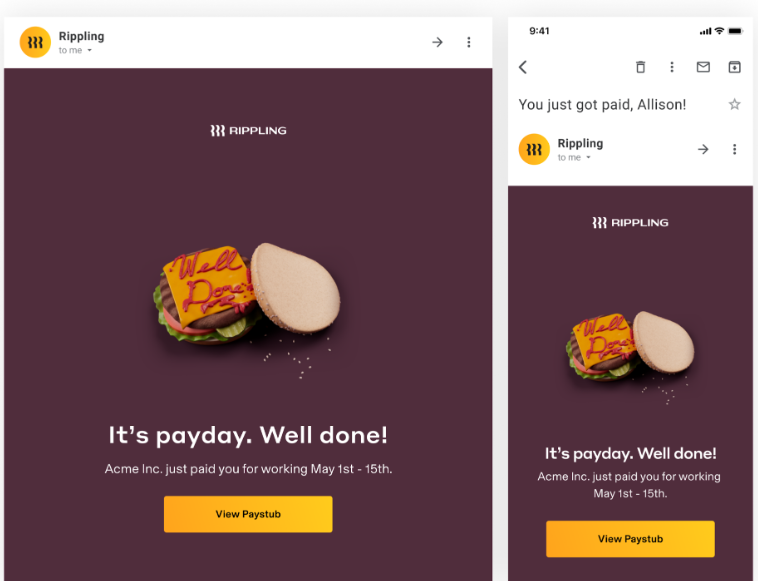
1Overview of Rippling Payday EmailsFor standard pay runs, Rippling will send an email to workers on their pay date to let them know they have been paid. The payday email will include the worker's name, your company's legal name, and the pay period for which they are being paid, plus a link to log in and view their full pay stub in Rippling (see below for a sample payday email).
Rippling will send the email at the following times, depending on how workers are paid:- For workers paid through the Payroll app, Rippling will send the email at 10:00 AM Pacific Time.
- For workers paid through the Global Payroll app, Rippling will send the email at 6:00 PM Pacific Time.
Workers paid through the Payroll app will also see their net pay on their pay stub. Payroll app admins can opt to remove the net pay and/or image from the payday email.
In addition, workers paid through the Payroll app have the option to choose which email to have the payday email sent to (work or personal, if saved in Rippling). They can also choose to opt out of payday notifications. -
2Admin Settings For the Payroll AppAs an admin of the Payroll app, you'll be able to decide whether you'd like to show employees their net pay and/or the payday email/paystub images. These can be updated in your company Payroll app > Settings tab > Paystub Settings section.
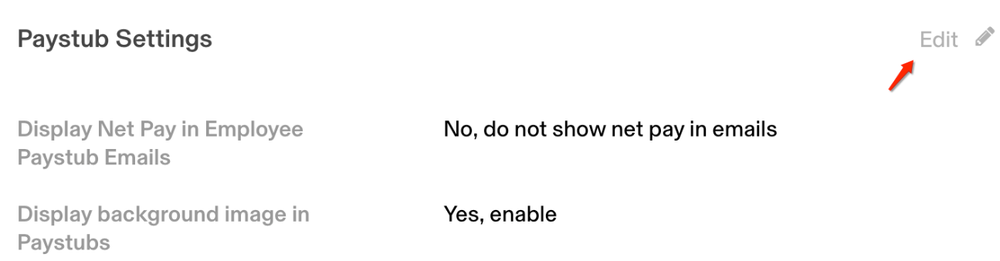 Please note that net pay is not visible on pay stubs processed through the Global Payroll app.
 -
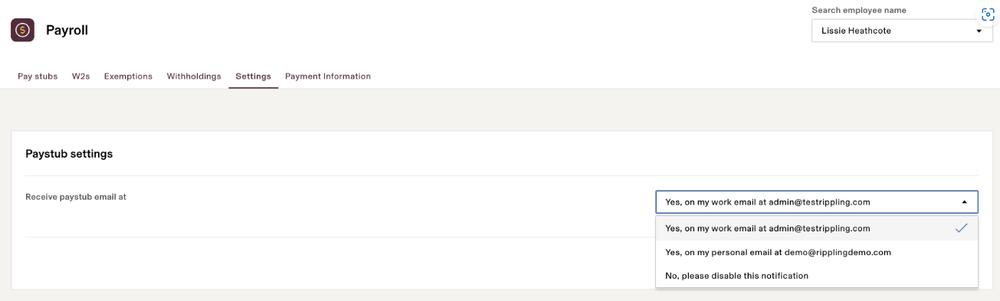
3Employee SettingsIf a worker has more than one email address saved in Rippling (work and personal, in most cases), they can choose the email address to which they receive these emails. They can also choose to disable email notifications if they prefer. Employees can update their payroll settings by navigating to their Rippling profile > My Pay section > Settings > click Edit and update the options.
-
4Payday Email ExampleSee the images below for a sample payday email. Please note that this is just a sample email; the actual email your workers will receive will look different.
If you still have a question, we’re here to help. Contact us