
Hiring & Firing Procedures for Doctors with Premium Set-Up
Hello Doctors,
Rippling has a wonderful workflow that will prompt you through the necessary steps to hire or terminate employees. This process is designed to walk you through that process using a video (see Step 1) or using Screen shots (the rest of the Steps).
For your Premium Document set up, PracticeCFO has reviewed and completed a setup of documents, signatures, email templates, and rules that you can use to hire and fire employees. Document Rules have been set up such that when you hire or terminate an employee, the documents we have identified as required by law will show up with a notice saying "Recommended by Rule". This determination was made at the time of setup.
PLEASE NOTE: PracticeCFO strongly recommends using employment lawyers to make sure that you are fully compliant with state laws and labor board requirements. It is the employer's responsibility to remain compliant by updating all necessary documents as needed. PracticeCFO will not update documents within Rippling.
help.rippling.com/s/article/360054483954
Rippling has a wonderful workflow that will prompt you through the necessary steps to hire or terminate employees. This process is designed to walk you through that process using a video (see Step 1) or using Screen shots (the rest of the Steps).
For your Premium Document set up, PracticeCFO has reviewed and completed a setup of documents, signatures, email templates, and rules that you can use to hire and fire employees. Document Rules have been set up such that when you hire or terminate an employee, the documents we have identified as required by law will show up with a notice saying "Recommended by Rule". This determination was made at the time of setup.
PLEASE NOTE: PracticeCFO strongly recommends using employment lawyers to make sure that you are fully compliant with state laws and labor board requirements. It is the employer's responsibility to remain compliant by updating all necessary documents as needed. PracticeCFO will not update documents within Rippling.
help.rippling.com/s/article/360054483954
-
1Video Walkthrough of the Procedure
-
-
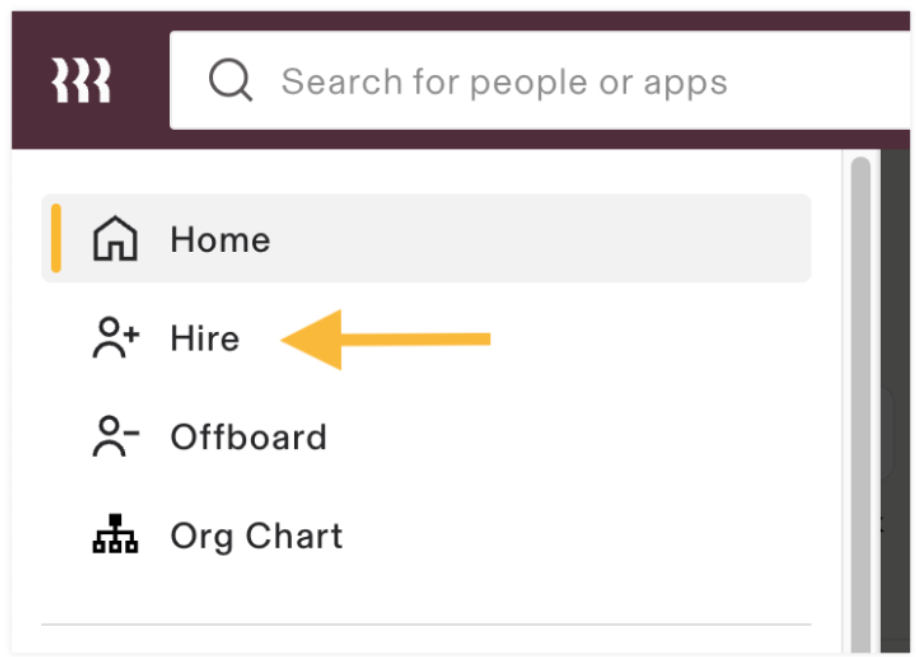
2To Hire a New Employee in Rippling:From the Rippling sidebar, click Hire.
-
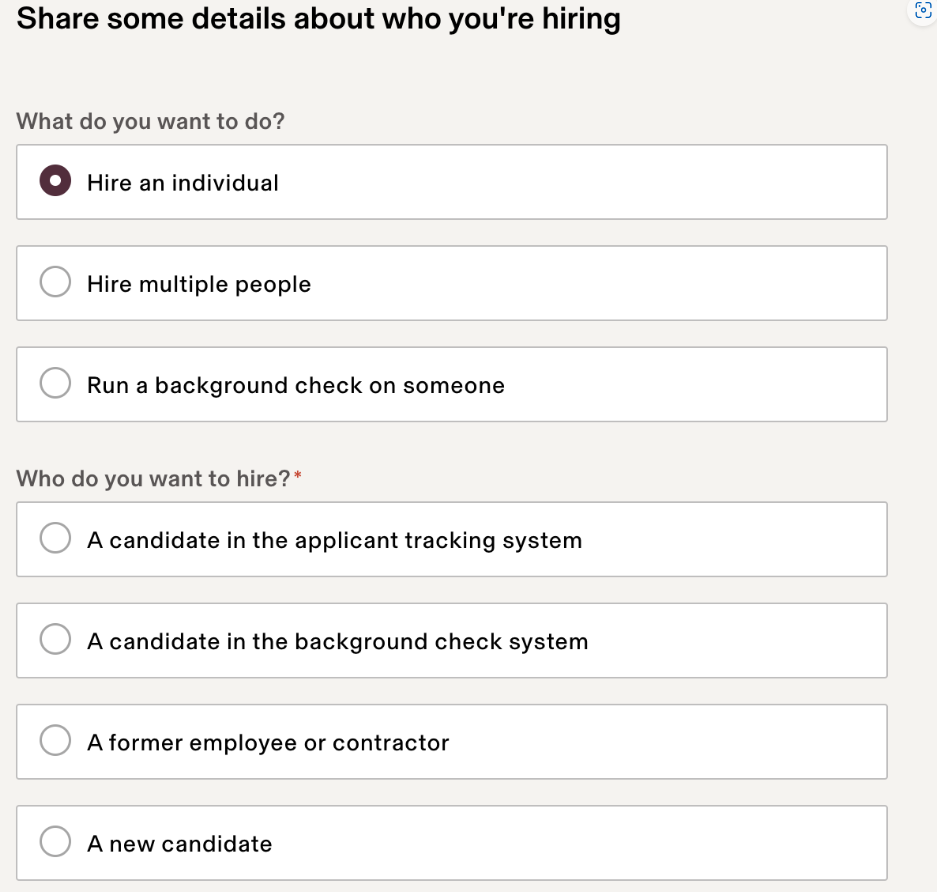
3Share Some Details About Who You're Hiring.
- Indicate whether you are hiring an individual or multiple people.
- If you're hiring an individual, select whether you want to hire a candidate in the applicant tracking system, a candidate in the background check system, a former employee or contractor, or a new candidate.
- Follow the applicable hiring flow to select the new hire or enter their details.
- Click Continue.
-
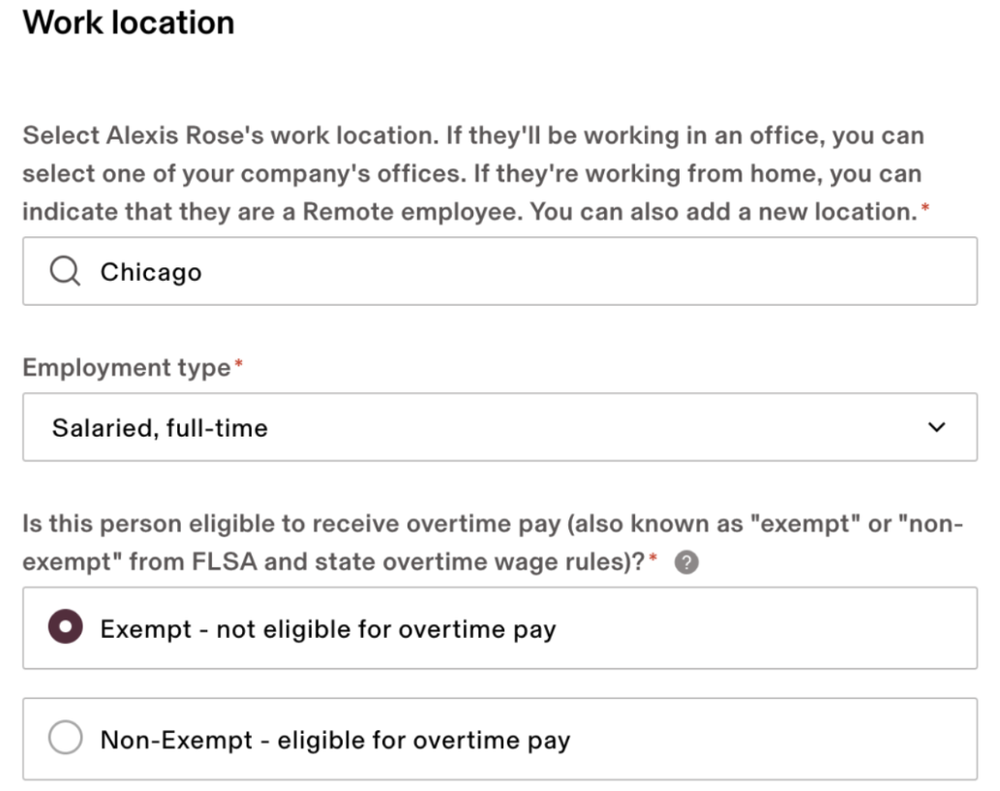
4Work Location, Entity, and Employment Type.
- For Work location, Rippling will automatically load your saved work locations. Select the location for this employee.
- You can also set up a new location from here or mark the employee as Remote.
- Select the new hire's employment type.
- For all employment types other than Contractor, you must specify if the employee is exempt or non-exempt from overtime.
- Click Continue.
-
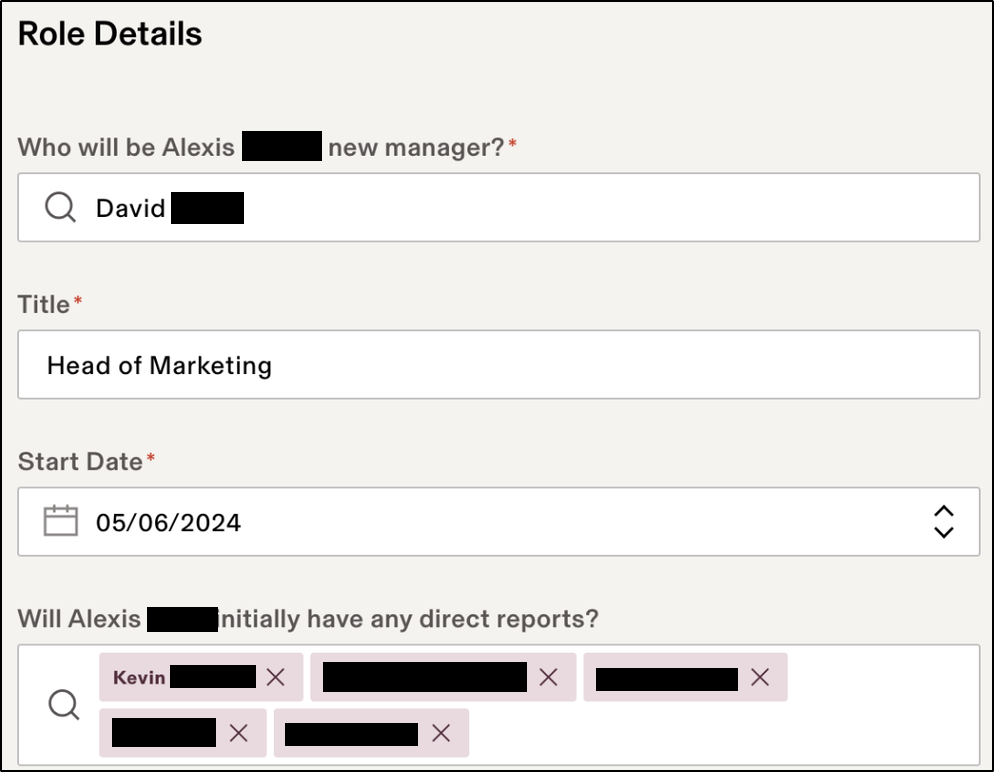
5Role Details.
- Select who the new hire will report to, their title, start date, and any direct reports they will have when they start.
- Add additional role details such as department, job family, and level.
- These details are used to populate the offer letter and other documents. If you choose "No manager" the offer letter will say "No manager;" so always put the doctor's name if there is no other direct manager.
- Click Continue.
-
6Compensation Details.
- Indicate which compensation types are relevant for the new hire.
- In addition to ongoing compensation offerings, you can also add a one-time payment, like a signing or relocation bonus. Learn more about how Rippling handles relocation and signing bonuses here
- Enter the new hire's salary or hourly wage and the details for any other compensation types you selected.
- Click Continue.
-
7Additional Employment Details.Depending on the location you are hiring in, you can choose to include a non-compete and/or non-solicit in the employment agreement.
-
8Agreements and Documents.
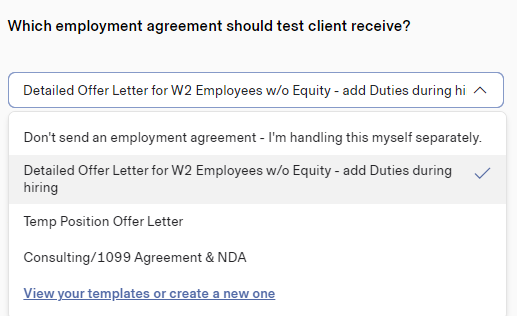
- Select the employment agreement you want to send to the new hire. PCFO has set up 3 types of agreements to choose from:
- W2 employees,
- Temporary employees, and
- 1099 contractors.
- If you would like to add your own specific offer letters, you can do so from here.
- The next 3 windows will prompt you to add the additional agreements/forms you want the new hire to receive:
- Other Agreements are documents the new hire must review and sign. Rippling will collect and save the signed documents.
- Static Documents are items that the new hire reviews and attests that they have received and reviewed. Rippling will send the attestation notice with the document and collect the signatures.
- Notices are informational for the new hire but required by CA to be sent. No signature or attestation is required.
Important: The Federal Govt and Each State Govt have various requirements regarding hiring and firing documents that must be sent out by employers. The boxes/items that are default checked and listed in parenthesis as (Recommended by rule) have been selected by PracticeCFO as required Federal and State Documents based on the type of employee you are hiring and the state where you do business. You should NOT change these selections unless you are hiring someone who works in a different state or you have been made aware of changes in the state requirements. In that case, reach out to HR for Health or PracticeCFO for assistance.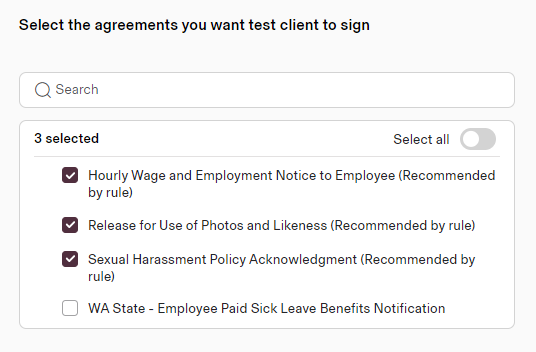
- Click Continue.
Note: New hires by Rippling PEO customers have three additional, automatically added, documents that they need to sign:
- PEO Worksite Agreement
- PEO Arbitration Agreement
- PEO Handbook - Select the employment agreement you want to send to the new hire. PCFO has set up 3 types of agreements to choose from:
-
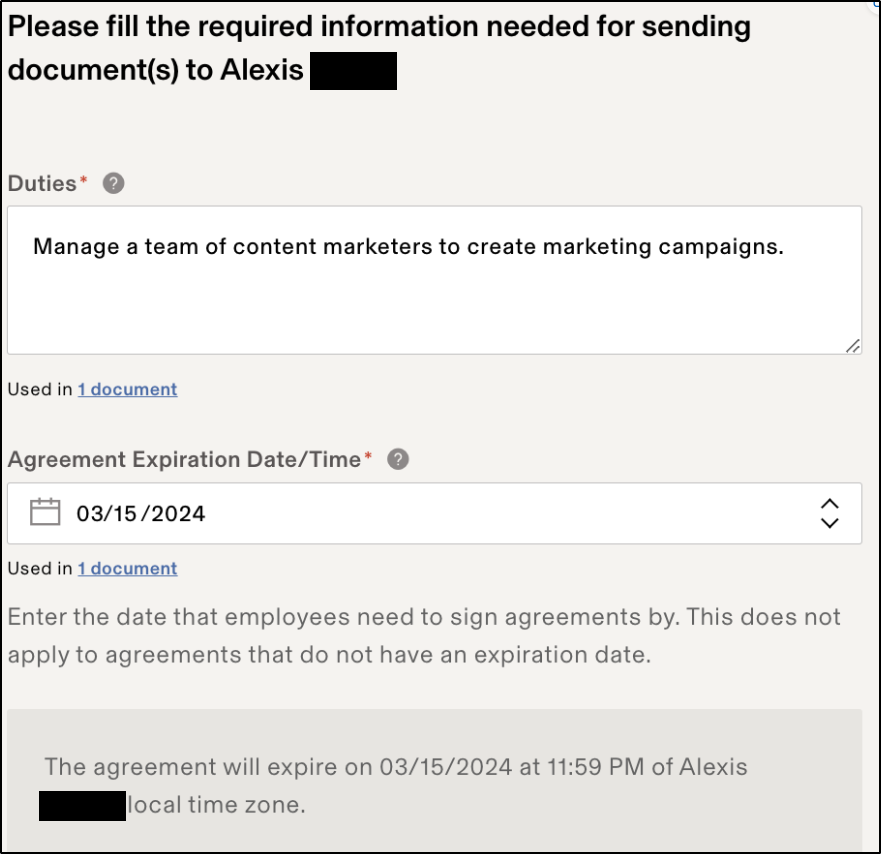
9Additional Document Information.When you select an offer letter created and sent through Rippling, there are additional items you must add to populate the agreement document. If you skip anything in this section, your offer letter will have blank gaps in it. (You won't see this step if you are not sending an offer letter through Rippling). Once complete, click Continue.
- Duties: A description of the employee's duties. You can copy and paste a description you used to advertise the position.
- Agreement Expiration Date/Time. This is when the agreement will expire, after which the signer can no longer sign.
-
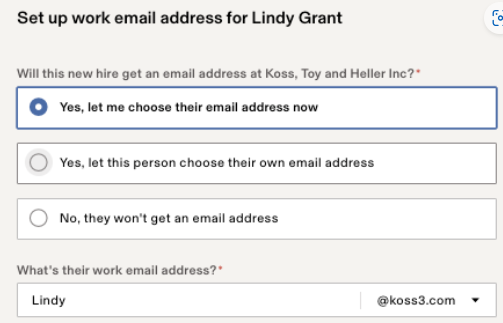
10Work Email.
- This step is only relevant if you are using Rippling to set up work email addresses.
- Specify whether the new hire should get a company work email address.
- When complete, click Continue.
Note: If you opt to not give access to work email and have third-party apps provisioned, Rippling will only create accounts for apps that support account creation using a personal email address.Note: If you don't have Microsoft365 or Google Workspace installed, a warning message is displayed indicating that Rippling can't create the user's work email address. You can enter the work email here for record-keeping purposes and continue the hiring process. However, an account can only be created if one of these apps is installed. -
11Review Employment Agreement.
- You can now review the offer letter created by the template chosen previously.
- If you wish to preview any other selected document, this will need to be done within the Documents app.
- You can send the letter as-is or click Edit to modify the offer letter before sending it.
- Any offer letter edits you make here will apply only to this new hire's letter and will not impact your offer letter template.
- When you're happy with the offer letter, click Continue.
-
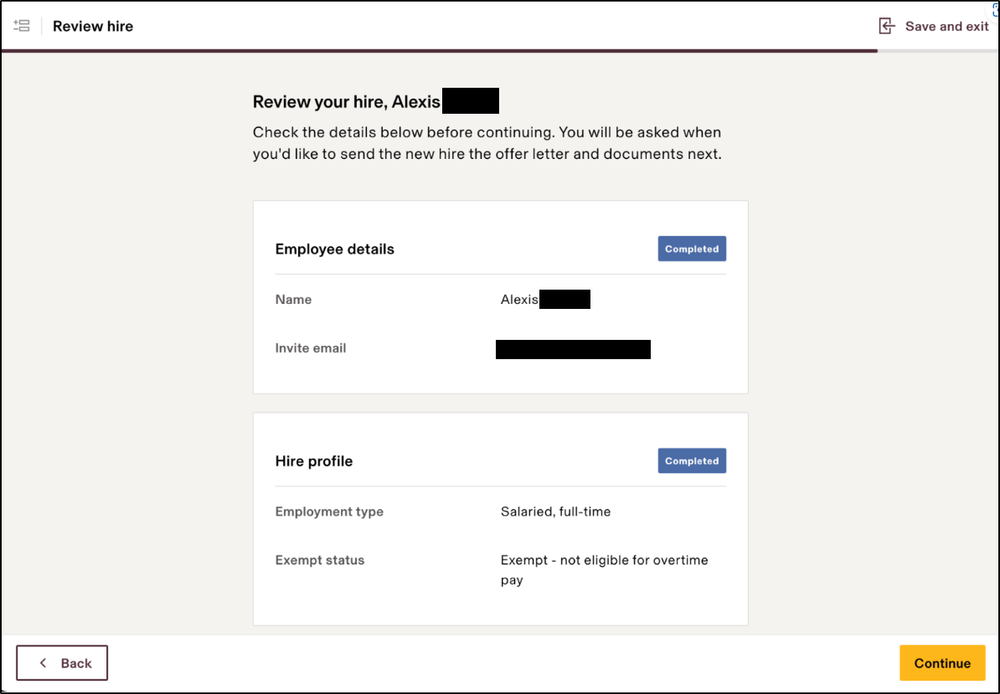
12Review Hire.
- Review a summary of the hire you are about to make.
- If you need to make changes, click Back on the bottom left to return to any step in the hiring flow. If the summary is accurate.
- Click Continue.
-
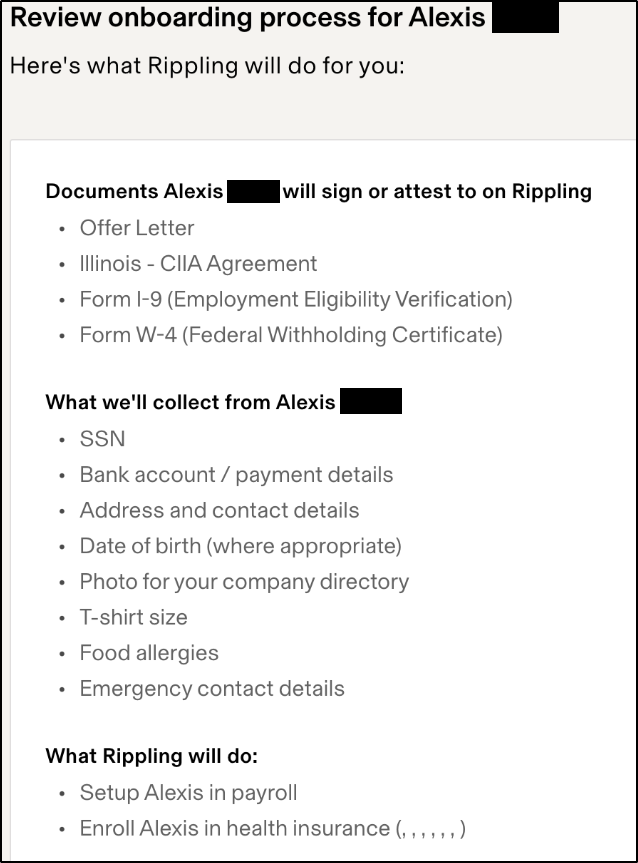
13[No action] Review Onboarding.
- Review the onboarding process for the new hire. This includes the documents for them to sign, the personal information they'll be asked to provide, and any other relevant app set up (e.g., payroll and benefits).
- If you've set up any custom fields to be collected from employees during onboarding, those will also be collected, but they won't appear on this list.
- Click Continue.
Tip: You can modify the documents being sent or the info collected from new hires:
- To adjust which documents are sent to the new hire in the case of an employee living in a different state, open the Documents app > Rules tab, and add a new rule for the new circumstances (i.e., who should receive this document). Note that the rules that are already created have been created by PracticeCFO after careful review of Federal, State, and Local requirements.
- To modify the info collected, open the Company Settings >Info Collected tab. For details, see our article on excluding info collected. If you do this before completing the hiring process (i.e., click Save and Exit on the top right, make updates at the links above, and then return to this new hire flow), any changes you make will be reflected for this hire.
-
14Send Email Notification.Rippling can email your new hire with their offer letter and an invitation to set up their Rippling account, or you can send them the email yourself. On this page, you'll see a preview of the invitation email and have the option to edit this new hire's communication. These email notifications will be sent to the individual's personal email address.Important: Rippling will send the email to the new hire immediately upon finishing the hiring flow; we do not support scheduling the offer email to send at a future time. If you select No, I will send this myself, make sure you copy the unique URL for the employee to create an account. If you choose to invite the new hire into Rippling yourself and later change your mind, you can still send an email invitation through Rippling. However, you will not have an opportunity to customize the email. For instructions on how to send the invitation outside of the onboarding flow, see article on resending the onboarding link.
-
15Click Finish Hiring.
-
16Firing ProceduresFiring procedures are similar (but shorter) than the hiring process. Following the prompts will help you complete the process easily. Please note the following:
In CA (and other states) there are required documents that MUST be sent to employees when they are terminated. As with the hiring process, PracticeCFO has uploaded all the required documents and created rules so that the appropriate documents will show up selected and marked as (Recommended by Rule). We highly recommend following these rules unless there are mitigating circumstances
If you still have a question, we’re here to help. Contact us