
California (CA) - How to File and Pay California Statement of Information (SOI)?

-
1Accessing the California Secretary of State Website to make the payment
Open your internet browser and navigate to the California Secretary of State website
Click Log in on the right hand side to log in to your account
Click Sign up if you don't have an account
-
2Locating the Statement of Information (SOI) Form
- While already logged in to your account, on the left-hand side click on the search bar and enter your entity name
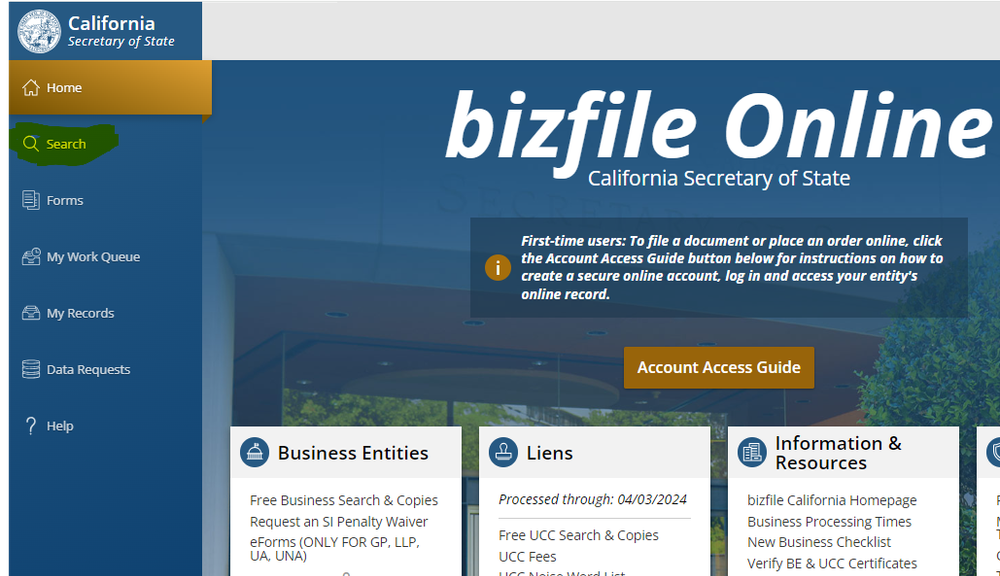
- Select your entity name from the website results.
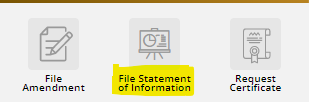
- Click on File Statement of Information on the right-hand side.
- Follow the prompts.
- Review privacy warning.
- Enter Submitter information.
- Verify or update entity details then select next step.
- Verify the following
- Street address of Principal Office of Corporation.
- Mailing Address of Corporation.
- Street Address of California Office of Corporation.
- Review names addresses and positions of officers and directors.
- Select an agent for service of process.
- Enter the type of business.
- Opt in or out from email notifications.
- Answer the Labor judgement question.
- Review and electronically sign your SOI renewal.
- While already logged in to your account, on the left-hand side click on the search bar and enter your entity name
-
3Making Online Payment for SOI
- Select the appropriate payment option for the SOI and fill in the required details, such as the business name, business entity number and payment amount.
- Complete the transaction by following the prompts on the screen. Once the transaction is confirmed, you will receive a receipt that can be saved for your records.
If you still have a question, we’re here to help. Contact us