
Updating and Managing Documents in Rippling for Premium Setup Clients
For your Premium Document set up, PracticeCFO has reviewed and completed a setup of documents, signatures, email templates, and rules that you can use to hire and fire employees. The review of required documents was at the time of setup.
This process is to describe how to make the following changes:
help.rippling.com/s/article/360054483954
PLEASE NOTE: PracticeCFO strongly recommends using employment lawyers to make sure that you are fully compliant with state laws and labor board requirements. It is the employer's responsibility to remain compliant by updating all necessary documents as needed. PracticeCFO will not update documents within Rippling.
This process is to describe how to make the following changes:
- Changing the person who signs offer letters and letters of termination
- Updating information that changes - including Workers' Compensation Insurance and Employee handbooks.
- Adding additional documents if the Federal or State laws change or update your requirements
help.rippling.com/s/article/360054483954
-
1Video Walkthrough of the Procedure
-
-
2Accessing the Documents Folder
- Log in to Rippling.
- Locate the briefcase icon on your dashboard.
- This is where you will find the Documents Folder.
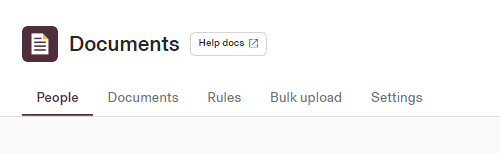
- You will see 5 sections in the Documents Folder
- People: This shows all your employees and the status of the documents they have received. The 3 dots next to each row will show you the list of docs sent and if anything is incomplete. You can send reminders here as well.
- Documents: templates for all your documents which are categorized and in folders.
- Rules: Used to assign who receives each type of documents when being hired/terminated.
- Bulk Upload: to upload employee documents
- Settings: to set signatories and email templates
-
3Adding or Changing DocumentsYou can use this section to send any kind of notification to your employees - like information on new insurance benefits or invites to a company party.If you have the Premium set up, PracticeCFO added all the legal documents required for hiring and terminating and categorized them in various folders. However, you are responsible for keeping these documents up to date and adding any new requirements that may change in Federal or State regulations.
Here are some reasons you may need to update:- If your employee Handbook changes, archive the old document and upload the new one. Then send it to your employees to be reviewed and signed.
- If the regulations change and a new document is required by law, add it here and send for signature if required.
- If an employee is hired from a different state, you will need to review and add documents for that state.
- Your Workers' Compensation Insurance information is required on some documents. When/if this changes, you must update the details. See the next Step.
To add a document, simply click "Create a document."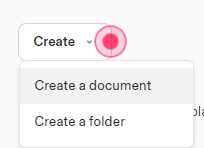
You can choose a template for certain types of documents or Start from Scratch and follow the process to add. The instructions will tell you what each type of document is for.Note that some require signatures, attestations, or will need to by dynamically updated with any variables that you add. -
4Updating Workers’ Compensation Policy Information
Updating Workers’ Compensation Policy Information
- Three documents need to be updated if your workers' comp insurance changes. This should be checked annually.
- To adjust the first document, Click on Templated Notices and select the Workers' Comp Pamphlet.
- Select Edit.
- Click Continue.
- Scroll down until you find a box to update the policy
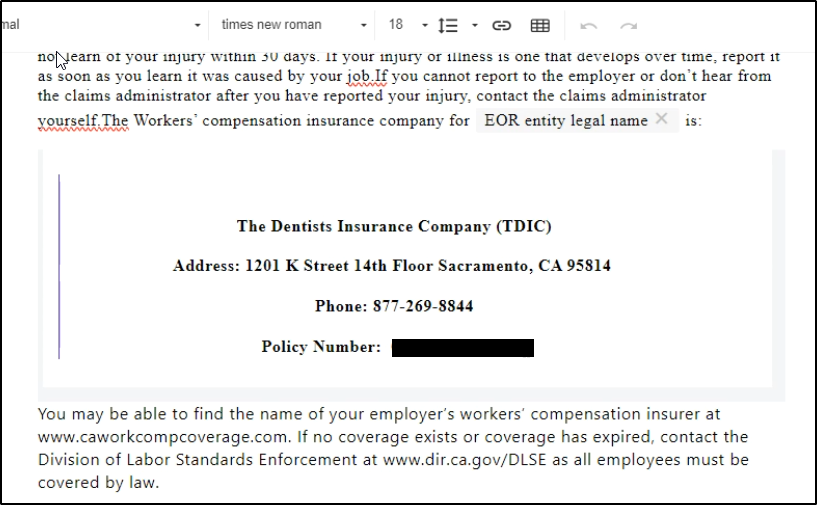
- Scroll up.
- Click Next.
- Click Publish.
Two other documents need to be updated with this same information.
In the Other Agreement Templates find these two and update the same way:
- Hourly Wages and Employee Notice to Employee Document
- Salary Wages and Employee Notice to Employee Document
-
5Changing Settings
Signatories
- If you have your Rippling account open, you can add signatories by clicking HERE
- Under the Settings tab, you can change or add signatories to each type of document.
- Settings tab will show you who signs the documents.
- First, select the people you want to give signature authority to and Rippling will send a request to collect the electronic signature.
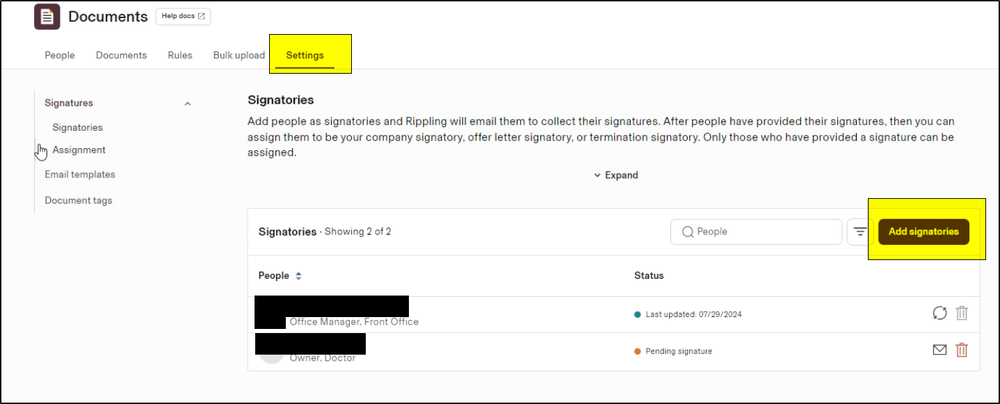
- Then assign each type of document (Company, Offer, Termination) to those with the authority
- Assignment tab:
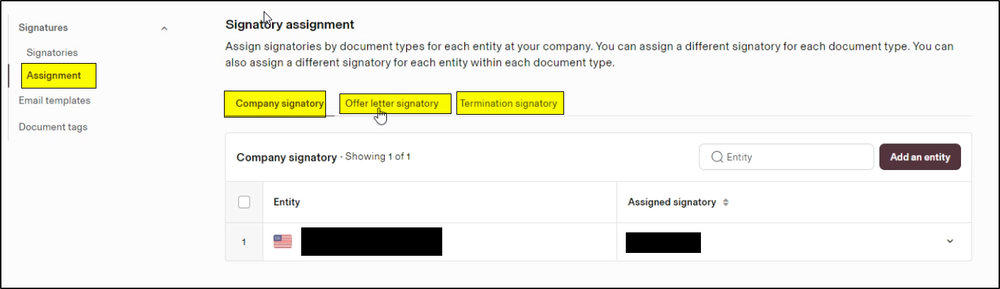
- Company signatory: for company letters.
- Offer letter signatory: will auto populate the offer letters with this signature.
- Termination signatory: will auto populate the termination letters.
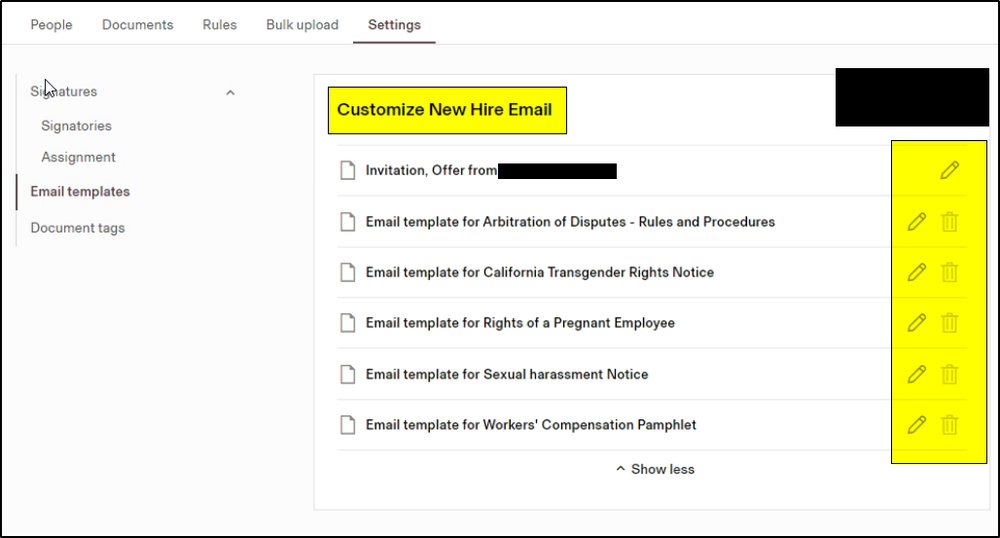
Email Templates
- The Email Templates section is used for emails that you will use regularly that introduce the documents you are sending to employees. They should include the actions the employee must take in relation to the document - i.e. Signing offer letters, attesting to notices received or Login to sign up for your Benefits,
- Customize email invitations or notices as needed, then save the updated templates for future use.
-
6Offer Letter Template Folder
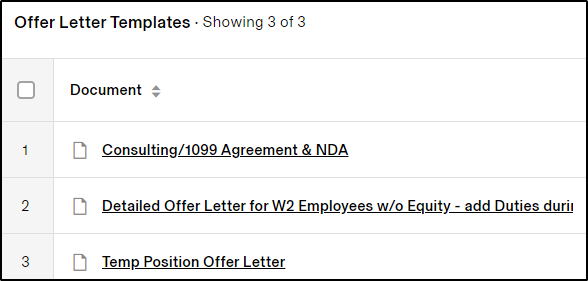
- Locate the Offer Letters category, which includes:
- One for 1099 employees
- One W2 employees
- One for temporary positions
- Click to review the agreements.
- Locate the Offer Letters category, which includes:
-
7Termination Templates Folder
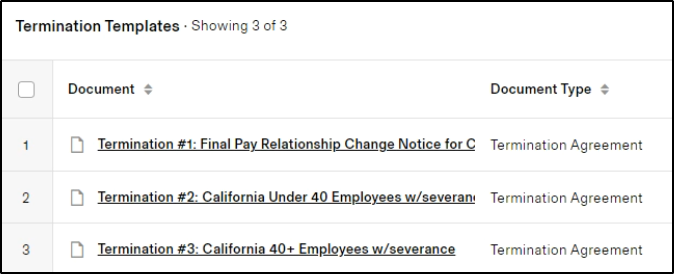
- Locatethe Termination Templates category, which includes three templates:
- Termination Template 1 is used most often.
- Templates 2 and 3 are for employees under 40 and over 40, respectively, particularly for severance and legal waivers.
- Click to review the agreements.
- Locatethe Termination Templates category, which includes three templates:
-
8Other Agreement Template Folder
- Ensure employees sign agreements required by California law. These are sent via Rippling with email instructions for signing.
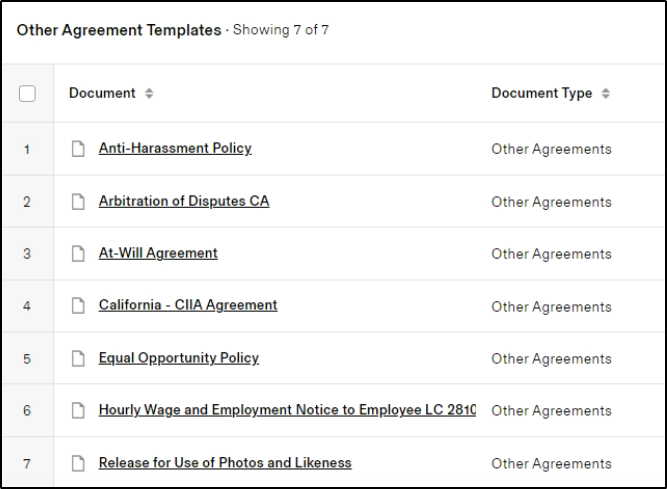
- Ensure employees sign agreements required by California law. These are sent via Rippling with email instructions for signing.
-
9Static Documents Folder
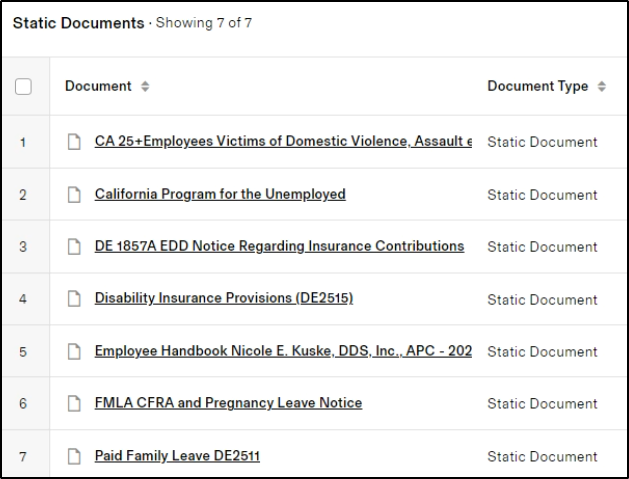
- For documents that are static in nature and DO NOT require a signature:
- It is mandatory for employees to confirm via email that they have received and thoroughly reviewed these documents.
- Utilize the email templates that have been specially created for this purpose.
-
10Templated Notices Folder
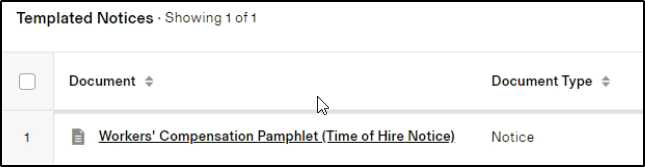
- This letter does not require a signature.
- It is essential to keep your workers' compensation insurance information updated.
- When there are any changes to your WC (workers' compensation) policy, please ensure they are reflected in this document.
-
11Static Notices Folder
- These do not require a signature but must be sent to employees.
- These do not require a signature but must be sent to employees.
-
12Support Section
- If you have further questions, consult the help section in Rippling or contact support.
- If you have further questions, consult the help section in Rippling or contact support.
If you still have a question, we’re here to help. Contact us