
California (CA) - How to Make Corp Tax Payments with Franchise Tax Board (FTB).
-
1Access Franchise Tax Board website
- Visit the FTB website here: ftb.ca.gov/pay/index.html.
- Sign in to your FTB account, or continue as a guest.
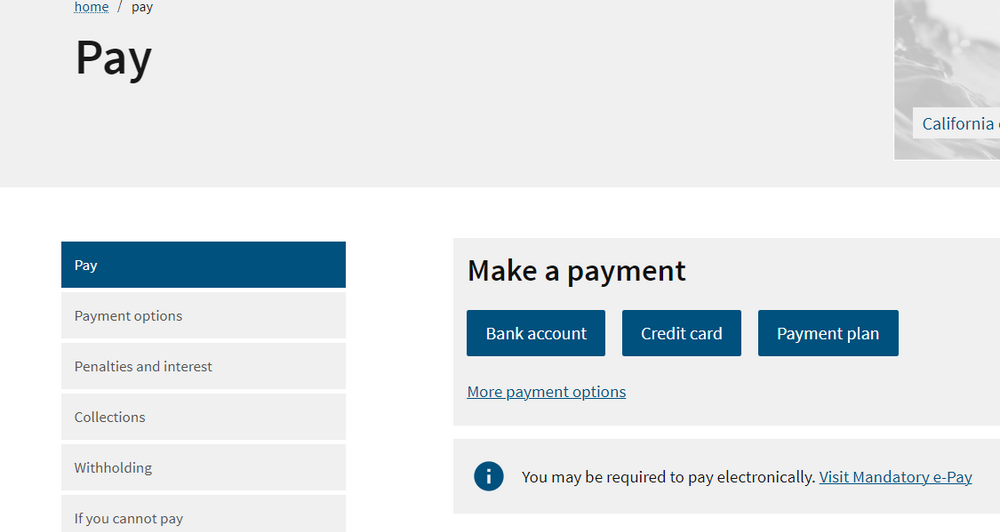
- Choose the Payment Option
-
2Choose Bank (Web Pay) or Credit card below and follow the instructions.
-
3Make a Payment with Your Bank Account
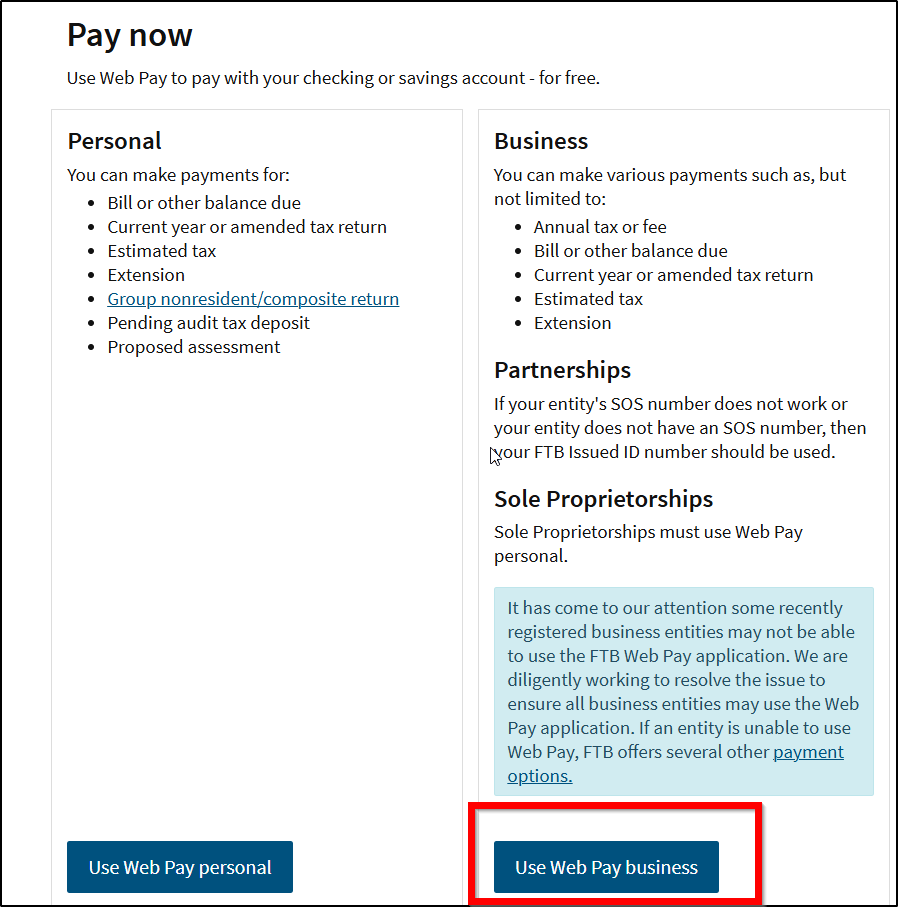
- Choose Web Pay Business.
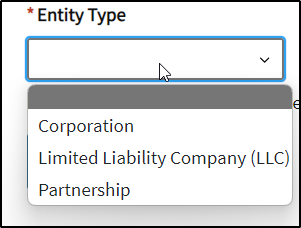
- Chose the entity type and enter Entity ID
- Entity ID can be found in your CA tax returns

- Entity ID can be found in your CA tax returns
- Enter your contact details
- Select the form you need to pay and click continue
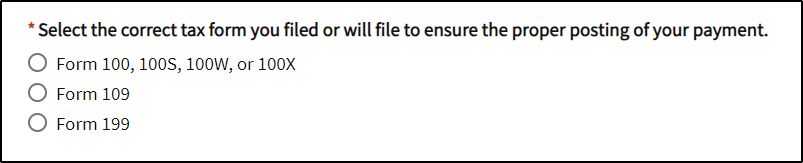
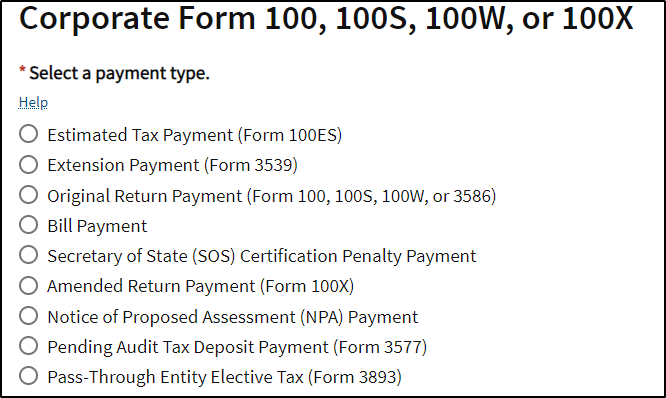
- Choose the type of payment
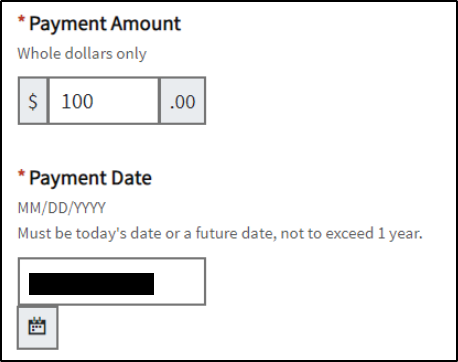
- Follow the prompt of period dates and the amount to pay
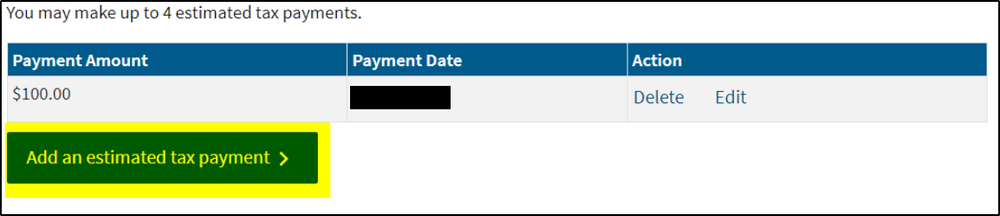
- You can add up to 4 tax payments
- Click Continue and enter your payment information
- Choose Web Pay Business.
-
4Send the Confirmation of Your Payment
- After making your payment, you should receive a confirmation receipt. Make sure you keep this receipt safe. In addition, please share a copy of this receipt with your CFO advisor via a secure email for confirmation of payment made.
-
5To Make a Payment with Your Credit Card
- There is 2.3% service fee to use Credit Card
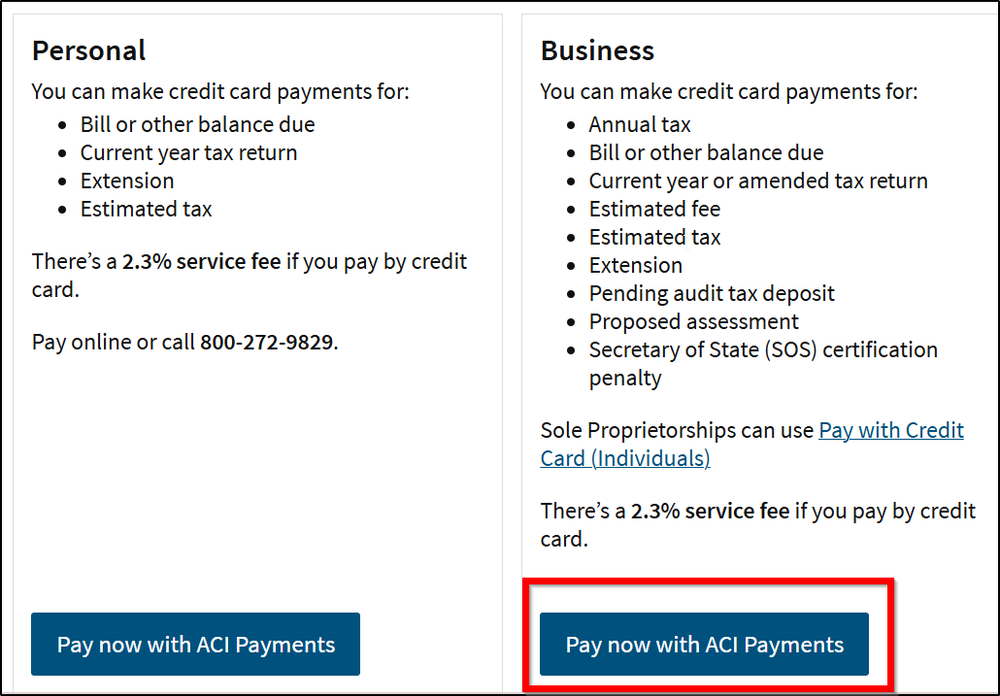
- You will be redirected to a new website (ACI Payments, Inc.) to proceed with your credit card payment.
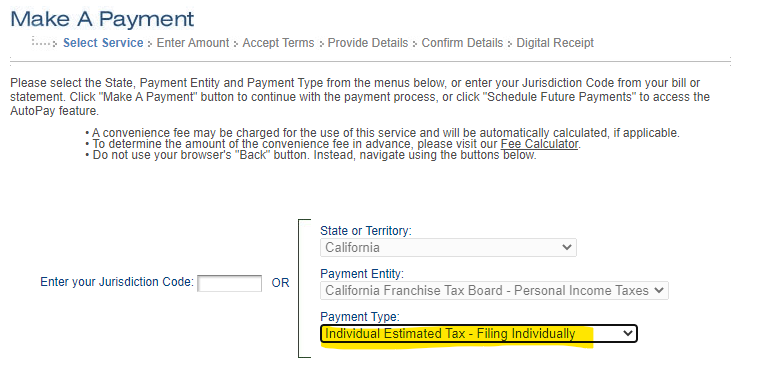
- Select Payment Type: Note there is going to be different options depends on if you are making personal or business payments.
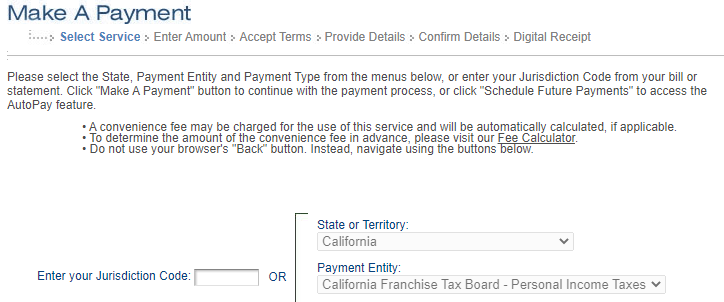
- Example: On the payment page, the "State", "Payment Entity" prepopulates. Please confirm that the information in correct.
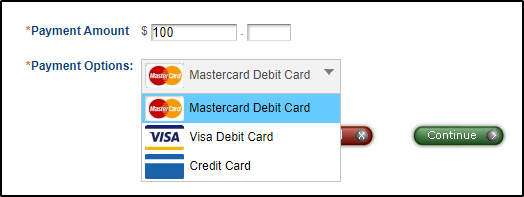
- Enter payment amount, then select "continue".
- Note: The picture below is an example of what the payment information section looks like. This is not your specific payment. Contact your CFO advisor if you are unsure of your payment type.
- Enter Payment Amount and choose payment options
- You will need to accept ACI Payments, Inc. terms and conditions before proceeding.
- After you accept ACI Payments, Inc. terms and conditions, enter your personal information that are required.
- Example: On the payment page, the "State", "Payment Entity" prepopulates. Please confirm that the information in correct.
- There is 2.3% service fee to use Credit Card
-
6Send the Confirmation of Your Payment
- After making your payment, you should receive a confirmation receipt. Make sure you keep this receipt safe. In addition, please share a copy of this receipt with your CFO advisor via a secure email for confirmation of payment made.
If you still have a question, we’re here to help. Contact us