
How to Create an Off-cycle Pay Run in Rippling
-
1Follow the Steps Below to Create an Off-cycle Pay Run.
- Open the Finance sidebar > Payroll app.
- Click Create an off-cycle pay run on the top right.
- Provide a descriptive title (e.g., New Year Bonus) for the off-cycle pay run.
- Select the employees you want to include in the off-cycle.
- Refer to our article on paying a terminated employee or contractor in Rippling to see how to include terminated workers in pay runs.
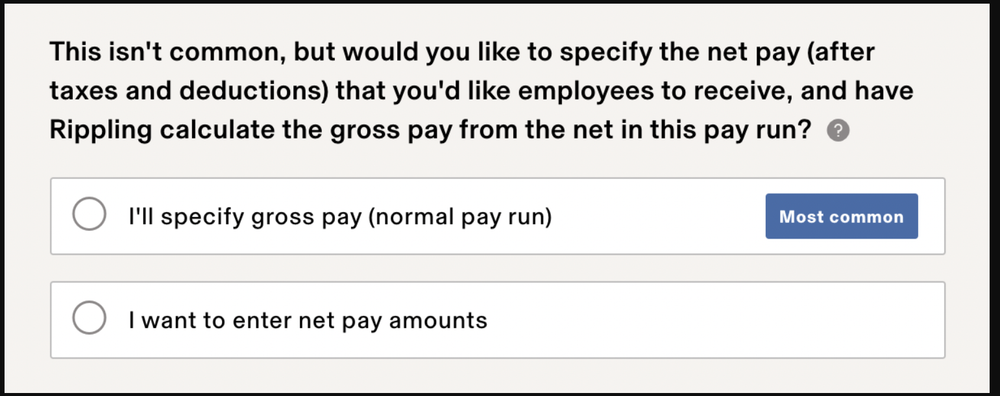
- Confirm if you would like to specify the gross pay (before taxes & deductions) or net pay (after taxes & deductions). If you select the net pay option, Rippling will calculate the gross pay for you. One thing to note is that this option is only available in an off-cycle pay run, and not in a normal pay run.
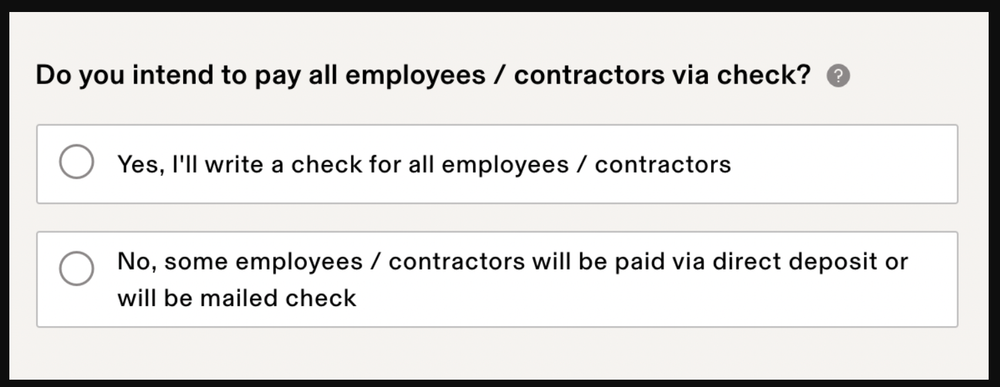
- Choose whether you want to pay employees/contractors by check or direct deposit.
- Select the pay date for the run.
- For direct deposit, the pay date is the date that money will arrive in employees' or contractors' accounts. It cannot be a weekend or a bank holiday, and must be at least 4 business days from today. The cutoff time for a payroll run is 2:30pm PST.
- Rippling can accommodate a pay date of the same business day as long as:
- All employees/contractors are paid via check.
- The pay run is approved before 2:30pm PST.
- Choose whether to display a pay period.
- Select if you'd like to include deductions in the pay run. You'll have two options for including deductions in an off-cycle pay run.
- Percentage based deductions: This option will add deductions that are set up with a percentage value under the Payroll > Deductions > Recurring deductions for active employees tab for the employees in the pay run.
- Non-percentage (flat dollar) deductions: If you select this option, the system will add deductions that are set up with a fixed dollar value under the Payroll > Deductions > Recurring deductions for active employees tab for the employees in the pay run.
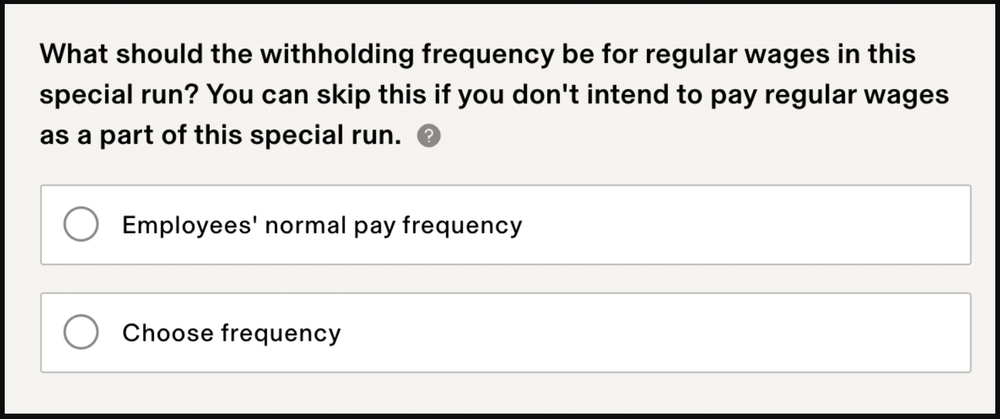
- Note: This affects the withholding rate for employees. E.g., if you choose a weekly frequency, taxes would be withheld assuming that employees in this run are paid 52 times a year.
- Select whether the run includes bonuses/commissions.
- You should then choose the withholding frequency for any regular wages included in this run.
- Select whether to include additional tax withholding on the pay run.
- Once you get to the pay run table, the process is the exact same as running a regular payroll.
- Enter any payment and reimbursement amounts.
- Preview payroll and review the tax deductions.
- Check that the pay amounts for employees are correct.
- Check that the entire payroll is correct, then Approve.
If you still have a question, we’re here to help. Contact us