
Owners & Admins Guide to Rippling
This article is designed to teach how Rippling approaches HR & IT management, what makes us unique, how to do common tasks, and where to find support.
-
1What is Rippling?Rippling is the first employee management system that sits underneath both your HR and IT so you can manage and automate all of your employees’ key business systems -- from payroll and benefits to computers and apps -- all in one integrated, easy-to-use platform trusted by thousands of businesses.
Check out this brochure for an overview of Rippling’s product suite.
-
2How do I navigate my Rippling account?Nearly all administrators have access to both an "employee" and an "admin" Rippling account. Both accounts feature a version of the Rippling dashboard, which is your starting point for every action you'll want to take in Rippling. You can toggle between accounts by clicking your profile image in the upper right-hand corner of Rippling.
When you log into Rippling, you'll see the admin dashboard. There are a few sections of the admin dashboard to familiarize yourself with:- The sidebar on the left gives you access to all of your Rippling services, employee management tools, and company settings, grouped into categories. You can quickly jump from one Rippling service, like Payroll, to another, like Applicant Tracking, from the sidebar.
- Along the top is your account banner. Toggle between your admin account and your employee account, access password settings and notification preferences, and search for employees at your company.
- Your single sign-on icons towards the top give you quick access to your integrated 3rd-party apps.
- The to-do list in the center shows your upcoming administrative tasks. Your tasks may be system-automated, like a reminder to run payroll, or configured by another Rippling admin as part of a new hire or offboarding checklist.
- Below your to-do list are your company apps. While Rippling handles basic automations like adding your new hires to payroll and prorating their first check, we also automate less obvious things, like getting every new sales rep access to Salesforce, Google Workspace, and Zoom, so that they are equipped for work on their first day. Because of this, you'll see both Rippling branded services like Payroll, Insurance, and Hardware at the top of the company apps section, as well as non-Rippling (3rd party) connected apps at the bottom.
When you switch to your employee profile, you'll see the employee dashboard. The employee dashboard has the same setup as your admin dashboard, but you'll only be able to see the employee versions of relevant apps, like Payroll or Time Off, and you won't be able to add new apps to your dashboard. -
3Organizational DataThe Organizational Data section of Rippling houses all of your basic company information, including how your company has decided to organize and classify employees. Work locations, department structure, and levels can all be accessed and updated through the Organizational Data page.
These employee categories are used to automate processes, so it's important to ensure they stay up to date. Read the articles below to learn more about setting up your company departments, work locations, levels, and teams.Sign in to your Rippling Account to read the following articles: -
4Company SettingsThe Company Settings section is where you'll find general account settings like billing, invoices, administrator permissions, and notifications. Here you can configure and customize your onboarding -- for example, indicating what information is getting collected from new hires, which new hires are required to complete an I9 (and the employees responsible for verifying I9s), which offer letters and agreements are available for sending out in onboarding and offboarding flows, and more.Sign in to your Rippling Account to read the following articles:
-
5How do I Hire or Terminate an Employee?Hiring an employee is at the core of Rippling's magic. Read the articles below to learn how to configure your offer letters & other new hire agreements, how to hire a candidate, and how Rippling will automatically set up your employees in payroll and benefits so important deadlines are met every time.Sign in to your Rippling Account to read the following articles:
-
6How do I Process Payroll in Rippling?Whether you love it or hate it, Rippling makes processing payroll a breeze! In the articles below, learn how to run payroll on your normal schedule, create off-cycle pay runs, and manage your company’s earnings, deductions, and taxes. You'll also learn how Rippling can integrate with your existing accounting software or 401k provider.Sign in to your Rippling Account to read the following articles:
-
7How do I Manage My Company's Insurance with Rippling?Rippling offers a world-class benefits administration system that eliminates the errors and stress around open enrollment, new hires, terminations, and qualifying life events. The articles below will help you understand how Rippling pushes benefits to payroll, creates enrollment forms for your carriers, and communicates to your employees about open enrollment, new hire enrollment, and COBRA administration.Sign in to your Rippling Account to read the following articles:
-
8How do My Employees Interact with Rippling?Your employees can manage many aspects of their data within Rippling. One of the best ways to learn about the Rippling experience for your workforce is to explore your own employee account. You can also look through the Employee Resource section of the Help Center to understand the common things your employees will do within their accounts.Sign in to your Rippling Account to read the following article:
-
9How do I contact Rippling Support?Rippling Support uses a unique pod model to ensure that the team member best equipped to solve your problem is the first person that works on it. The article below goes into detail on how the pod model works and how you can utilize live chat and email support.Sign in to your Rippling Account to read the following article:
-
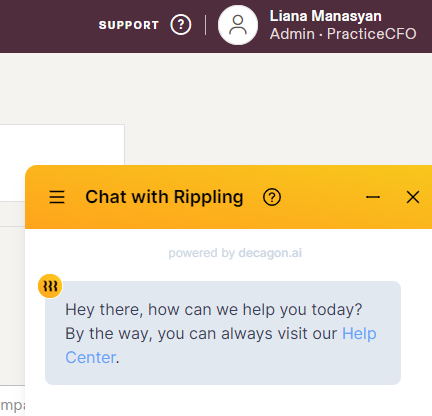
10When to Contact Rippling vs PracticeCFO?When you first start out, contact PCFO at payroll@practicecfo.com until you get through your first 2 payroll runs.Payroll Processing: Contact PracticeCFO for help processing your payroll, payroll tax questions, and adding on any new products.General Rippling Functions: Contact Rippling support by using Live Chat. Use this feature by accessing support from your Rippling organization. Click on "Support" and the chat with Rippling will pop up.
If you still have a question, we’re here to help. Contact us